You can ask clients for PDF scans, but most will still take a photo with their phone. Fighting that habit rarely works. A better approach is to accept phone photos and teach clients how to make them usable - once, clearly, in a way they will remember.
Why phone photos go wrong
- The document is photographed at an angle, so text at the far edge is unreadable.
- Low light makes the camera blur the image.
- The flash creates a white glare over the total or the date.
- Part of the document is cut off - often the most important part.
- Multi-page documents arrive as a pile of separate, unordered images.
Five rules to share with clients
- Flat and from above. Lay the document on a table and hold the phone directly over it.
- Dark background. A white page on a dark table is easier for the camera to frame.
- Good light, no flash. Daylight or a bright room; switch the flash off to avoid glare.
- Everything in the frame. All four corners visible, including totals, dates and stamps.
- Check before sending. Zoom in once - if you cannot read the smallest number, retake the photo.
Point clients to the scanner they already have
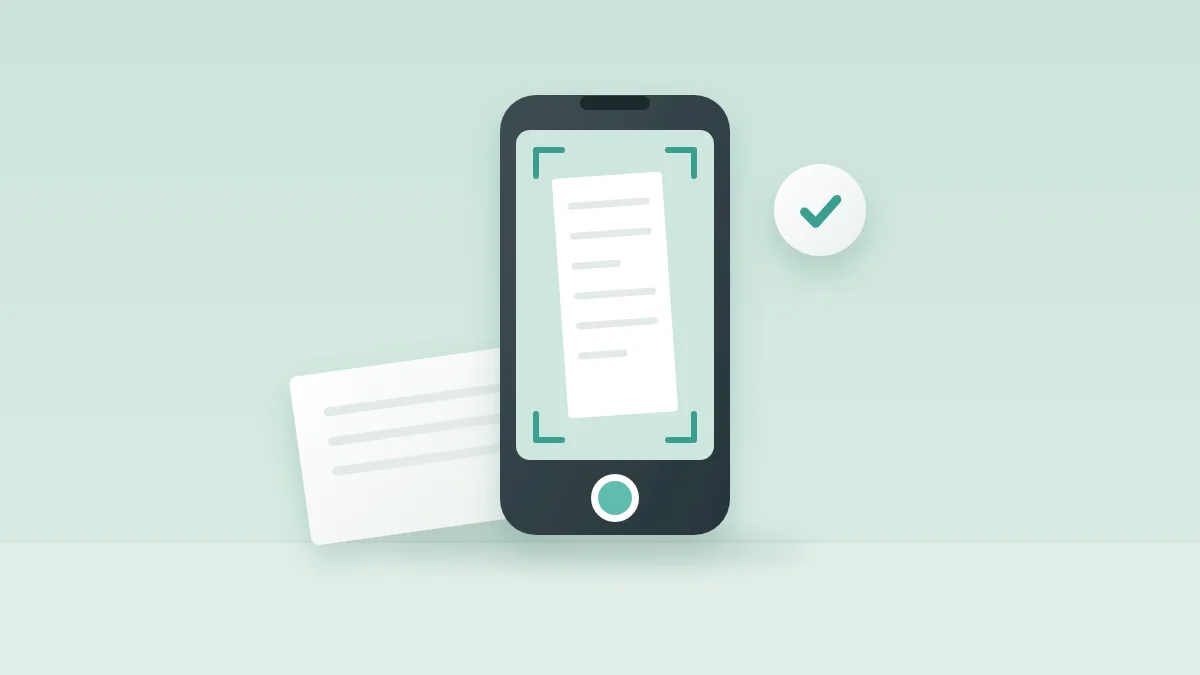
Most phones include a document scanner that straightens the page, removes shadows and saves a PDF - for example in the built-in notes or files app, or in common cloud-storage apps. Many clients do not know it exists. A one-line hint with the name of the feature on their phone often solves the problem for good.
Multi-page documents
Ask clients to scan multi-page documents into one PDF rather than separate photos. If they do send photos, ask them to upload them in page order and in one go, so you can keep them together.
When a photo is not usable, say exactly why
“Please resend” leads to the same photo taken the same way. “The total at the bottom is cut off - please retake the photo with the whole receipt in the frame” tells the client what to change. Being specific turns a rejection into a quick fix.
Do not make the upload the hard part
If uploading requires a computer or a password, clients will save photos “for later” and forget them. A mobile-friendly upload page reached from a link means the photo can be sent the moment it is taken.
MonthDocs lets clients upload photos and PDFs straight from their phone through a secure link, and lets you reject a file with a specific reason the client sees immediately.